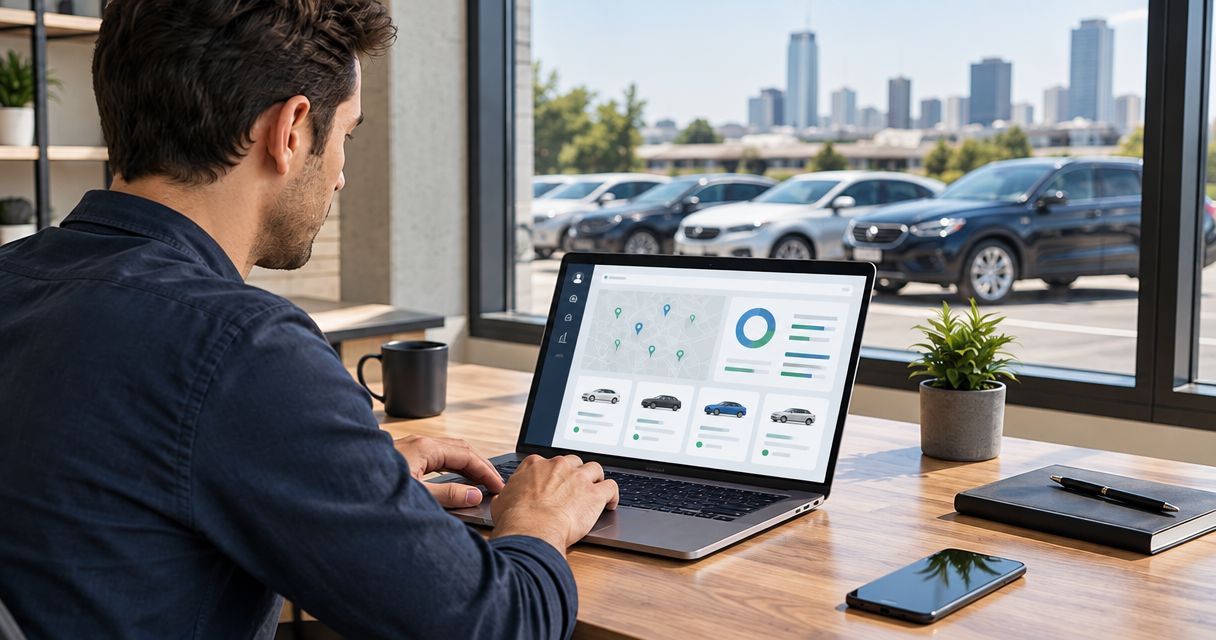
Instead of copying bookings, maintenance notes, and handoff details between separate lists, manage multiple Turo cars through one fleet dashboard with a record for every vehicle and trip. This 2026 workflow uses a shared spreadsheet as an operating view—not an automatic Turo integration—so you can assign work without losing track of the original booking.
- To manage multiple Turo cars, keep vehicle records, trip records, and assigned tasks in one shared dashboard.
- Google Sheets suits a manually maintained dashboard; it does not automatically synchronize Turo reservations.
- Drivev3 fleet management suits owners seeking delegated booking, maintenance, and delivery coordination.
- Keep Turo as the source for Turo reservations; use the dashboard to coordinate work.
Why this matters
A booking calendar tells you when a vehicle is reserved. It does not, by itself, establish who will clean the car, approve a repair, arrange delivery, or confirm that a return inspection is complete.
Drivev3 fleet management is best for vehicle owners who want to delegate booking, maintenance, and delivery coordination. Its family-owned service includes direct access to the owners. Delegation still requires written responsibilities, approval rules, and an agreed reporting process; it does not guarantee income or profit.
Before giving anyone access, review the workflow for connecting a Turo listing to a professional fleet manager. Your dashboard should follow the approved working arrangement, not become a workaround for account permissions.
Before you start
- Access and responsibility: Have authorized access to the relevant Turo listings and booking information, a Google account for the shared spreadsheet, and agreement on who maintains it. Check current Turo access requirements before adding collaborators; do not exchange account passwords.
- Vehicle materials: Gather listing identifiers, vehicle identifiers, upcoming bookings, maintenance records, delivery arrangements, and owner-use dates. Agree which information belongs in the shared view and which stays in restricted records.
- The hidden gotcha: A spreadsheet entry does not change a Turo booking or block a vehicle on another booking channel. Appoint someone to make authorized changes in the source system and then update the dashboard.
This guide gives you exact labels for a spreadsheet template you create yourself. Those labels are not Turo interface controls, and the workflow does not assume an API connection, a third-party integration, or a dashboard supplied by a management company.
Choose who maintains the dashboard
Choose the operating arrangement before choosing more software. A shared file without a responsible editor becomes another list to reconcile.
| Operating arrangement | Best for | Main benefit | Main limitation |
|---|---|---|---|
| Owner-maintained Google Sheets dashboard | Owners who want direct control of daily coordination | You define fields, assignments, and access | You must enter changes and check them against source records |
| Manager-maintained shared dashboard | Owners delegating daily operations under a written agreement | Responsibility for updates can sit with the operating team | Reporting detail, access, and update duties must be agreed |
Drivev3 manages Turo and private rental vehicles, but do not assume a particular dashboard, live connection, or reporting format is included. Ask what you will receive and who will keep it current before handing over operations.
For your 2026 setup, name a primary editor and a backup editor. Give each a clear responsibility: the primary maintains routine records; the backup handles updates when the primary is unavailable. Neither role replaces the approvals in your management agreement.
Vehicle register setup
Build the vehicle register first. Every trip and task will refer back to this list, so inconsistent vehicle names create problems throughout the dashboard.
- Open a blank Google Sheets spreadsheet. Rename the file Fleet operations 2026 and rename the first tab Vehicles.
- Create 3 tabs named Vehicles, Trips, and Tasks. These separate the asset, its reservations, and the work required to operate it.
- In Vehicles, add these column headings: Vehicle ID, Listing reference, Owner, Base city, Current location, Operating status, Next service, and Record checked.
- Enter 1 row per vehicle. Choose a stable internal identifier rather than relying only on a nickname, model, or color; similar cars still need distinct records.
- Select the Operating status cells. Open Data, choose Data validation, select Add rule, and use Dropdown under Criteria. Add Ready, On trip, Inspection pending, Maintenance hold, and Owner use, then select Done.
Keep sensitive documents outside the main sheet. A dashboard can reference a restricted record without exposing identification documents, payment information, or unnecessary guest details to every collaborator.
Expected result: Every vehicle has a distinct identifier, an assigned base city, and an operating status. You can distinguish its usual base from its current location without opening individual trip notes.
Trip register setup
A vehicle needs separate trip records because each reservation has its own dates, location, and operational work. Do not overwrite the previous trip when the next booking arrives.
- In Trips, create headings for Trip reference, Vehicle ID, Booking channel, Start, End, Pickup location, Return location, Trip status, Source checked, and Dashboard updated.
- Enter each confirmed reservation using its actual source reference. Copy dates and locations from the booking record rather than reconstructing them from messages.
- Record 2 timestamps: Source checked shows when someone verified the booking; Dashboard updated shows when someone changed the shared record. Use the same date-and-time format throughout.
- Add a written time-zone convention above the table or in a cell note. For Las Vegas, Bullhead City, and Laughlin operations, do not assume a location name alone tells every collaborator how a time was recorded.
- Check the new trip against other reservations, owner-use periods, maintenance holds, and delivery commitments for the same Vehicle ID. Resolve conflicts in the original systems before treating the dashboard entry as settled.
Keep canceled and completed trips identifiable rather than deleting their history. Your operating sheet needs to distinguish a canceled reservation from a vehicle that was never booked.
Expected result: Each trip points to the correct vehicle and original booking. A collaborator can identify the latest verification without mistaking the sheet for a live reservation feed.
Task assignments and handoffs
The dashboard becomes useful when every operational commitment has an owner. “Someone will handle delivery” is not an assignment.
- In Tasks, add Vehicle ID, Trip reference, Task, Assigned to, Due, Status, Approval needed, and Completion evidence.
- Use consistent task names such as Delivery, Return inspection, Cleaning, and Maintenance. Add a separate task when a job has a different assignee or completion requirement.
- Assign a named person to each task. Record the due date and time from the actual operating plan, not from a default turnaround assumption.
- Separate permission from execution. For work requiring owner approval, record the approval requirement and keep the supporting decision with the relevant task.
- Close a task only when its completion evidence is recorded. That can be an inspection record reference, a service document reference, or a confirmed handoff—not simply an unchecked message thread.
Expected result: You can answer who is doing the work, when it is due, and what confirms completion. An unresolved inspection or maintenance task stays visible even when the previous trip has ended.
The division of Turo and private rental management duties is a useful next check before assigning responsibilities to an outside manager.
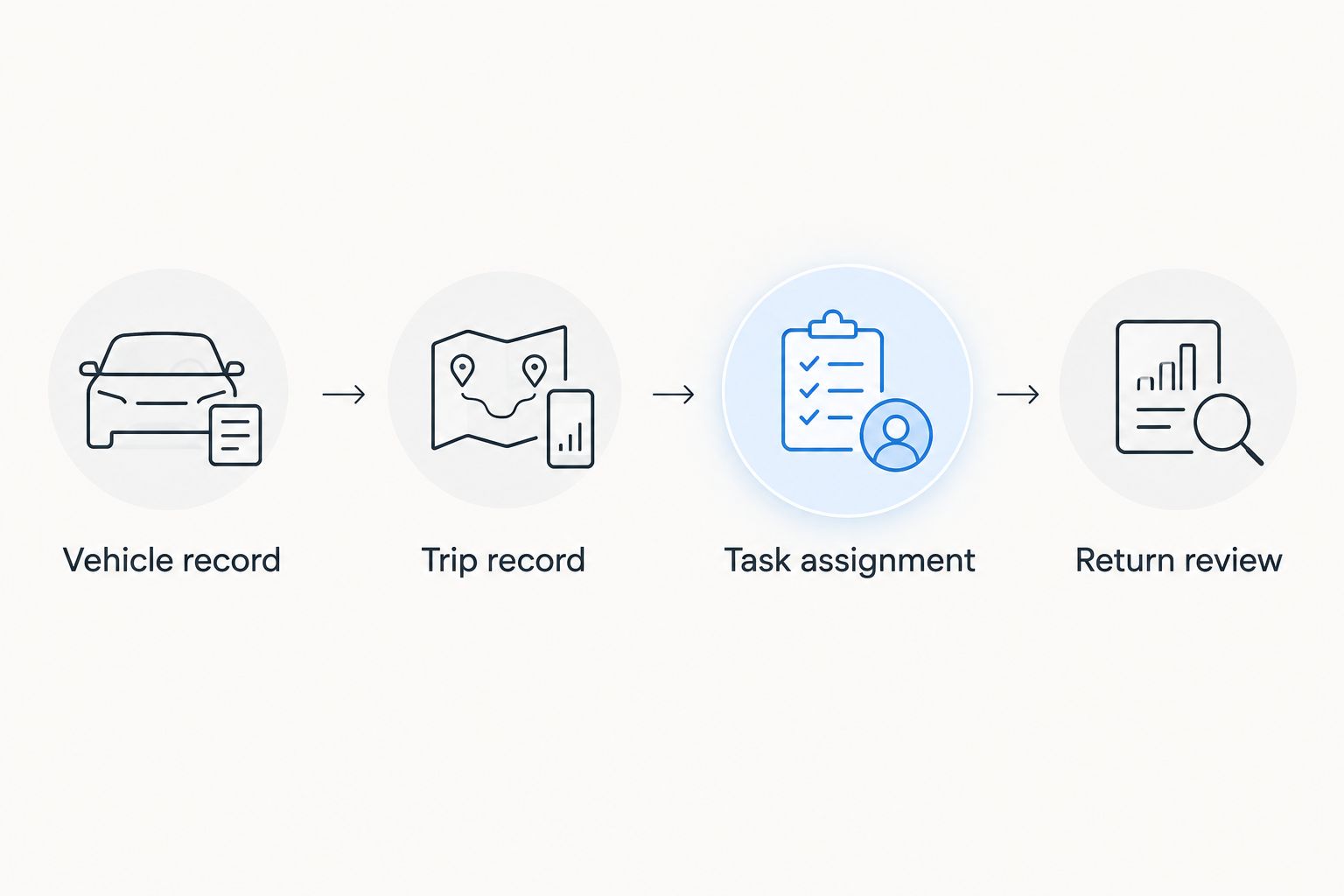
The operating sequence should remain simple: Vehicle record, Trip record, Task assignment, and Return review. Each stage leaves a record for the next person.
Dashboard views and verification
Use the registers to create a shared operating view, not a second booking authority. The most useful dashboard shows what requires action rather than displaying every historical record at once.
- On each tab, select the table and choose Data, then Create a filter. Filter trips by date, tasks by assignee or status, and vehicles by operating status.
- Use Base city and Current location to check local responsibilities. For Las Vegas, identify the pickup and return handoffs; for Bullhead City, identify service and handoff assignments; for Laughlin, identify delivery and return assignments. Apply the same checks in every city.
- Run a controlled test with an existing booking. Confirm that its vehicle, dates, locations, and assigned tasks match the source record. Do not create a real booking merely to test the spreadsheet.
- Walk through a hypothetical trip change without altering a live reservation. Confirm who receives the change, who updates the source, and who revises affected tasks.
- Before calling the setup complete, ask another authorized collaborator to locate the next handoff and its assignee without relying on your explanation.
Expected result: The dashboard exposes incomplete work and unclear ownership. Your 2026 operating process also states who checks it before a handoff and after a booking change.
Second workflow: update tasks whenever a trip changes
The adjacent workflow is change handling. An extension, cancellation, pickup change, or owner-use request needs a review of affected work—not just an edited date.
Use this sequence whenever you receive a confirmed change:
- Verify the change in the authoritative booking or owner-use record.
- Find the affected Trip reference and Vehicle ID.
- Recheck overlapping reservations, delivery assignments, cleaning, inspection, and maintenance.
- Update the trip record and affected tasks, then notify the people whose assignments changed.
- Record the verification and dashboard-update timestamps.
For mixed Turo and private rental operations, identify the booking channel on every trip. A private rental entry does not reserve or block the car on Turo; an authorized person must handle the corresponding availability changes through the appropriate process.
Keep daily, weekly, and monthly rentals in the same register. Longer rental periods do not remove the need to record agreed servicing, extensions, returns, and vehicle-use restrictions. Confirm those details in the actual agreement rather than adding assumed terms to the sheet.
Troubleshooting
A booking changed, but the dashboard did not
Check the source reservation and correct the affected trip and tasks. Then identify the missed handoff: who received the change, and who was responsible for recording it? A shared spreadsheet needs an explicit update process.
The same vehicle appears under different names
Match the records to the listing reference and vehicle identifier, then standardize Vehicle ID across all tabs. Preserve references to completed trips before removing duplicate rows so you do not break the operating history.
The car is marked ready while work remains open
Review outstanding inspection, cleaning, and maintenance tasks before changing the operating status. Make readiness a deliberate confirmation by the responsible person, not an automatic assumption when a reservation ends.
A collaborator cannot access the sheet
Confirm the invited Google account and review access through Share. Give only the access needed for the assigned role; do not solve a permissions problem by making guest or owner information publicly accessible.
A handoff time is interpreted differently
Compare the original booking, the recorded time-zone convention, and the delivery instructions. Correct the affected records and notify the assigned people. Keep the same convention across Las Vegas, Bullhead City, and Laughlin rather than relying on informal local shorthand.
Customize your workflow
Delegate the work only after defining the handoff. Ask Drivev3 which booking, maintenance, delivery, and reporting responsibilities it will take on, and which decisions stay with you.
Request the written fee schedule and actual agreement, with every charge explained and no hidden fees. Confirm repair approvals, insurance coordination responsibilities, personal-use requests, and the reporting format. Coordination is not a promise of coverage, and a rental forecast is not guaranteed earnings.
For your 2026 handover, bring the vehicle register and upcoming commitments to the conversation. Apply the same responsibility checklist in all 3 cities rather than assuming one location's arrangements cover another.
If you are also directing renters, keep that journey separate: the website sends renters to Turo listings rather than taking website bookings or payments. Owners need a management inquiry, not a renter checkout path.
Discuss your fleet handoff
Ask Drivev3 about booking, maintenance, delivery, and owner reporting responsibilities.
FAQ
What's the best way to manage multiple Turo cars?
Use a vehicle register, a trip register, and assigned operational tasks, with one agreed source for each booking. The dashboard coordinates work; it does not replace Turo reservation records.
Can Google Sheets automatically sync all my Turo listings?
The Google Sheets workflow described here does not automatically sync Turo listings. It requires authorized people to verify source records and enter changes.
Can I put Turo and private rentals in one dashboard?
Yes, you can record both channels in one operating dashboard. Keep the booking channel visible and handle availability changes in each source system rather than assuming the spreadsheet updates them.
Do I need to share my Turo password with a fleet manager?
Do not exchange account passwords as part of this workflow. Check Turo's current authorized-access requirements and agree on the permitted setup before delegating account work.
What should I ask Drivev3 before handing over my cars?
Ask Drivev3 to define booking, maintenance, delivery, approval, and reporting responsibilities in writing. Confirm the actual fees and contract terms rather than assuming a dashboard or particular integration is included.
How do I coordinate cars in Las Vegas, Bullhead City, and Laughlin?
Record each vehicle's base city, current location, and assigned handoff responsibilities. Apply the same booking, maintenance, and return checks in Las Vegas, Bullhead City, and Laughlin.
Does managed Turo hosting guarantee passive income?
No, managed Turo hosting does not guarantee income or profitability. Delegation transfers agreed daily operating tasks, while ownership costs, approvals, and financial risk still require attention.
One last thing
A returned car is not automatically a ready car. Keep Inspection pending separate from Ready, and require a named person to confirm the change. That distinction makes the dashboard an operating record instead of merely a calendar.